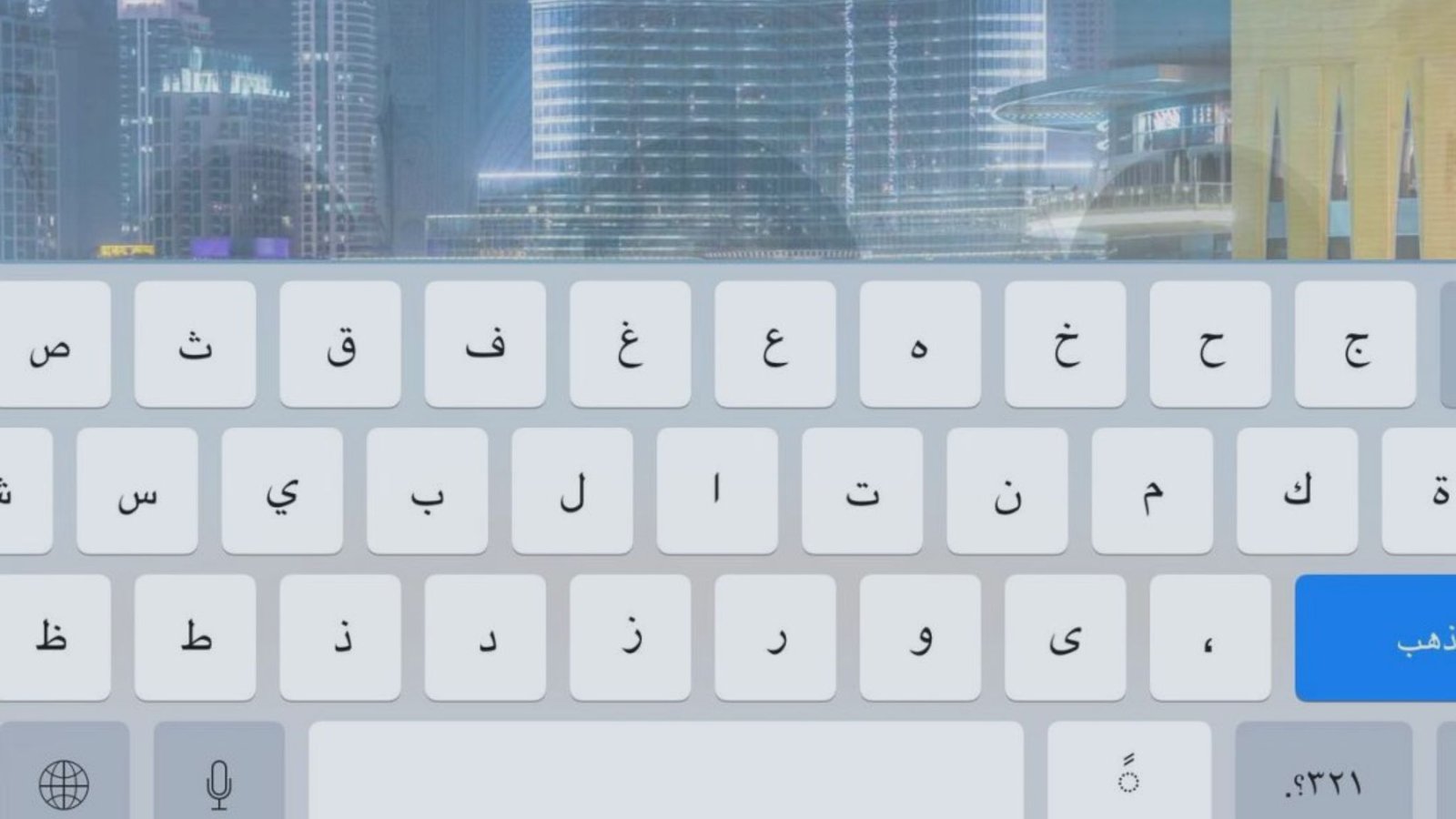
How to change keyboard to Arabic is a common question in Egypt, especially for students, professionals, and anyone who types in both English and Arabic daily. Whether you are writing emails, chatting on WhatsApp, working on school assignments, or browsing local websites, switching your keyboard to Arabic should be quick and frustration-free.
In this guide, you will learn how to change keyboard to Arabic on Windows laptops, MacBooks, Android phones, iPhones, and even physical keyboards sold in Egypt. Everything is explained step by step, in simple language, with local tips and estimated prices where relevant. If you shop for tech in Egypt, stores like Btech Egypt are also mentioned.
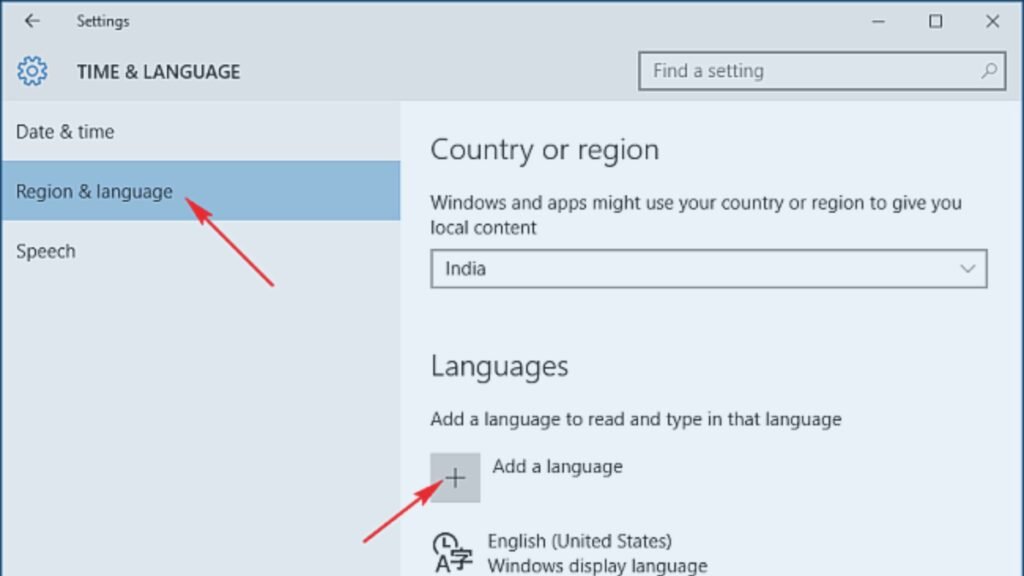
How to Change Keyboard to Arabic on Windows (Windows 10 & 11)
If you use a Windows laptop or desktop in Egypt, this is the most common method.
Step-by-Step Method
- Open Settings
- Go to Time & Language
- Click Language & Region
- Select Add a language
- Search for Arabic
- Choose Arabic (Egypt) for best local compatibility
- Click Install
Once installed, you can switch languages using:
- Alt + Shift
- Or Windows key + Space
Arabic Keyboard Layout Tip
The Arabic (101) layout is the most widely used in Egypt. It matches most Arabic-English keyboards sold in local markets.
Estimated Price for Physical Arabic Keyboard in Egypt
- Basic Arabic-English keyboard: EGP 250 – 500
- Branded keyboard from btech egypt: EGP 600 – 1,200
How to Change Keyboard to Arabic on Mac (macOS)
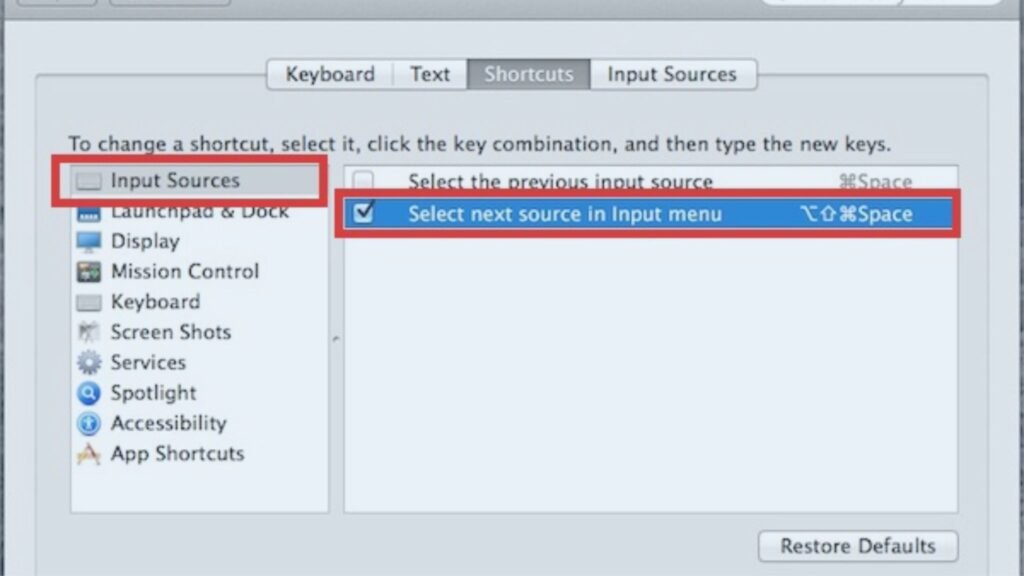
Mac users in Egypt often struggle to find the correct Arabic keyboard option, but the process is simple.
Steps for macOS
- Open System Settings
- Go to Keyboard
- Click Input Sources
- Select Add Input Source
- Choose Arabic
- Add Arabic – PC or Arabic – QWERTY
You can switch between English and Arabic using:
- Control + Space
Helpful Tip
Arabic – PC layout feels more familiar if you learned typing on Windows.
How to Change Keyboard to Arabic on Android Phones
Android users in Egypt often rely on Arabic typing for messaging, social media, and work apps.
Using Gboard (Most Popular Option)
- Open Settings
- Go to System > Languages & input
- Tap On-screen keyboard
- Select Gboard
- Tap Languages
- Add Arabic
- Choose Arabic (Egypt)
You can switch languages by tapping the globe icon on the keyboard.
Arabic Keyboard App Prices
- Gboard: Free
- Premium Arabic keyboard apps: EGP 50 – 150
Most Android phones sold through b Tech Egypt come with Arabic language support pre-installed.
How to Change Keyboard to Arabic on iPhone (iOS)
Apple devices sold in Egypt fully support Arabic typing.
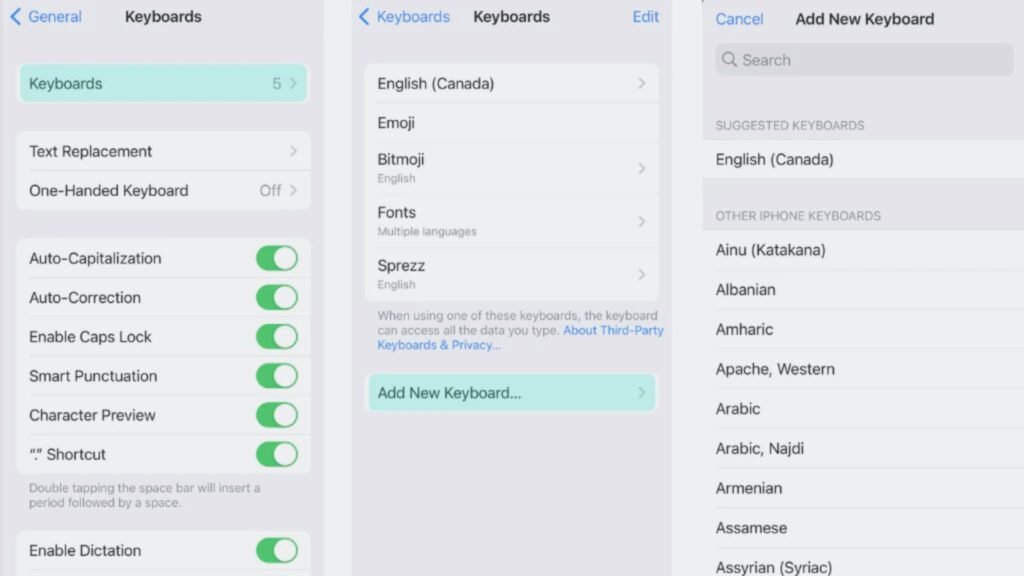
Steps on iPhone
- Open Settings
- Go to General
- Tap Keyboard
- Select Keyboards
- Tap Add New Keyboard
- Choose Arabic
Switch between keyboards using the globe icon.
Extra Tip
You can enable Arabic predictive text for faster typing.
How to Change Keyboard to Arabic on Physical Keyboards
If you prefer physical keyboards with Arabic letters printed on the keys, Egypt offers many options.
Common Types Available in Egypt
- Arabic-English USB keyboards
- Wireless Arabic keyboards
- Mechanical keyboards with Arabic engraving
Where to Buy
- Btech Egypt retail stores
- Local computer markets
Estimated Prices
- Standard Arabic-English keyboard: EGP 300 – 700
- Wireless Arabic keyboard: EGP 700 – 1,500
- Mechanical keyboard with Arabic letters: EGP 1,800 – 3,500
How to Switch Between Arabic and English Faster
Once you learn how to change keyboard to Arabic, switching quickly becomes the real goal.
Best Shortcuts
- Windows: Alt + Shift
- Mac: Control + Space
- Mobile: Globe icon
Pro Tip
Practice typing without looking at the keyboard. Arabic muscle memory develops faster than you expect.
Common Problems and Easy Fixes
Arabic Letters Are Not Correct
Make sure Arabic (Egypt) is selected, not another regional variant.
Keyboard Switch Not Working
Restart your device and check that the language is enabled correctly.
Physical Keyboard Letters Don’t Match
This happens when the keyboard layout does not match the system language. Use Arabic stickers if needed. Sticker sets cost around EGP 50 – 100.
Best Arabic Keyboard Option for Students & Professionals in Egypt
- Students: On-screen Arabic keyboard (Free)
- Office Workers: Arabic-English USB keyboard (EGP 400 – 800)
- Writers & Translators: Mechanical keyboard with Arabic layout (EGP 2,000+)
Most professionals prefer buying from btech egypt due to warranty and local support.
Final Thoughts
Learning how to change keyboard to Arabic is essential for daily digital life in Egypt. Whether you use a laptop, smartphone, or physical keyboard, the process is simple once you know the right steps. With Arabic support built into modern devices and affordable keyboard options from stores like b Tech Egypt, typing in Arabic has never been easier.
If you regularly switch between languages, take a few minutes to set it up properly. It will save you time every single day.